We’ve all been there. You open your inbox, see an unexpected email urging you to download a software update, and your internal scam-radar instantly starts blaring.
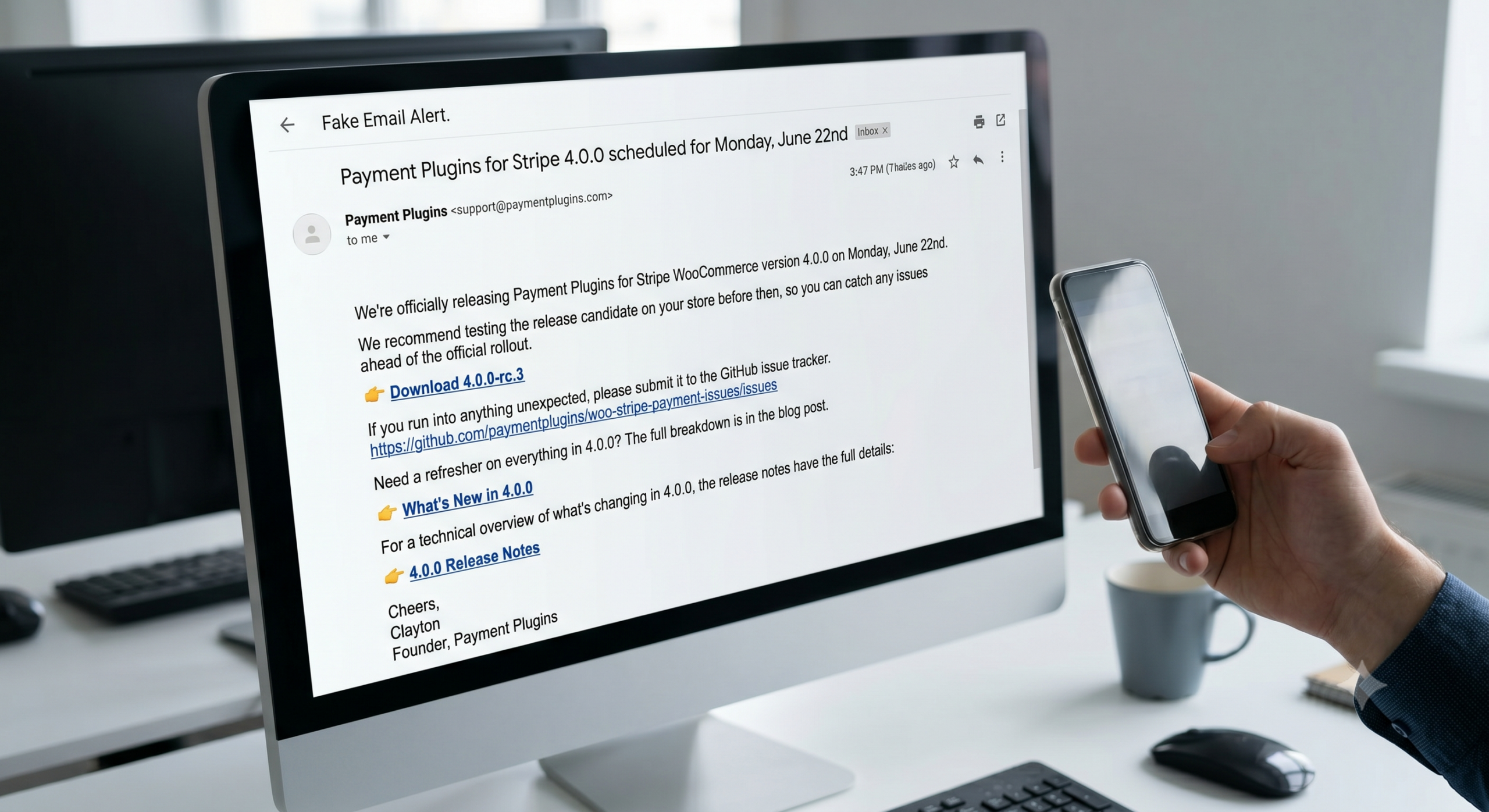
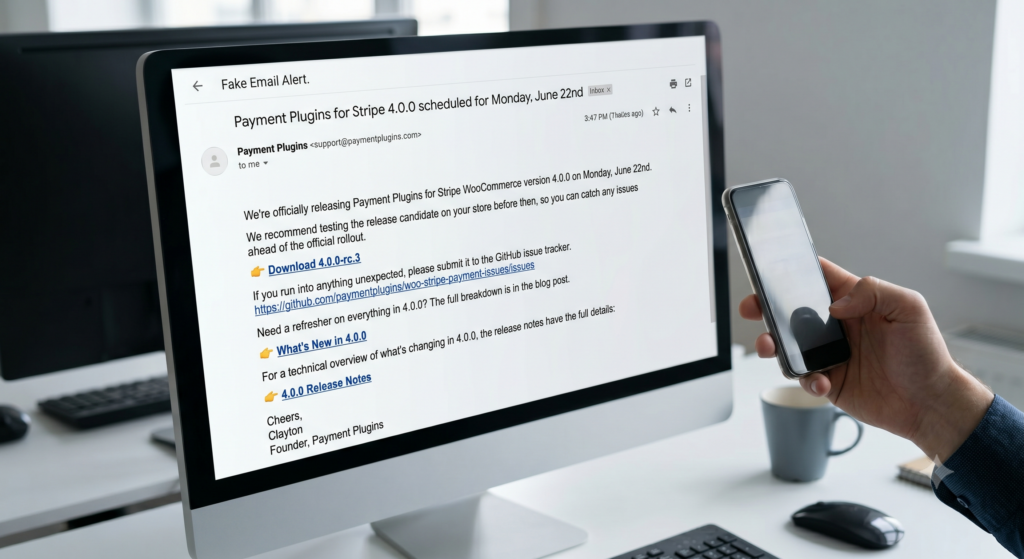
Recently, one of our clients reached out with exactly this scenario. They received an email claiming to be from the developers of their WooCommerce Stripe payment plugin. It warned them about an upcoming version 4.0.0 release and provided a direct link to download a “release candidate” to test before the official rollout.
They thought it was a sophisticated phishing attempt. Honestly? At first glance, we did too.
But after digging into it, the email was completely legitimate. Here is a breakdown of why this real email looked so incredibly fake, and the steps you can take to verify suspicious messages without putting your business at risk.
Why It Set Off Our Alarm Bells
Our client was absolutely right to be cautious. The email contained several classic hallmarks of a phishing scam:
- Direct Download Links: The email included a link that said
👉 Download 4.0.0-rc.3. In the cybersecurity world, clicking a direct download link inside an unsolicited email is practically a cardinal sin. Phishers use this exact tactic to install malware. Usually, legitimate plugin updates are handled securely within the WordPress dashboard, not via email attachments or direct links. - A Ticking Clock: The message created a sense of urgency by stating the official rollout was happening on “Monday, June 22nd.” Scammers love using deadlines to pressure you into clicking before you have time to think critically.
- Unusual Direct Contact: Getting a personal-sounding email from the “Founder” of a widely used plugin directly to a general
info@email address is highly unusual.
Everything about the email’s structure screamed, “Do not click this!” So, how did we figure out it was actually safe?
How to Determine if a Suspicious Email is Actually Real
When you are staring down an email that feels “off,” never click the links right away. Instead, put on your detective hat and follow these verification steps:
1. Inspect the Sender’s Actual Address
Don’t just look at the display name (which can be faked to say anything, like “Payment Plugins”). Look at the actual email address it was sent from.
- The Reality: In this case, the email came from
support@paymentplugins.com. While email addresses can be spoofed, this matched the official domain of the software developer perfectly, without any typos likepayment-plugins.comorpaymentplugins-support.net.
2. Hover Before You Click
If you hover your mouse cursor over a link (without clicking it!), your browser or email client will show you the actual destination URL in the bottom corner of your screen.
- The Reality: The links in the email pointed directly to
github.com/paymentplugins/.... GitHub is a legitimate, widely used platform for software developers. If the link had previewed a strange URL likebit.ly/random-lettersor a completely unrelated website, it would have been a scam.
3. Go to the Source
This is the golden rule. If an email tells you to update your billing info, log into your bank, or update a plugin—ignore the email and go directly to the source yourself.
- The Reality: Instead of using the email links, we went independently to the official Payment Plugins website and their GitHub repository. Sure enough, the developers had just posted public announcements about the upcoming 4.0.0 release candidate, matching the exact details in the email.
The Takeaway: Better Safe Than Sorry
We will always, always prefer that you flag a real email as a potential scam than accidentally click on a real phishing link. Our client did exactly the right thing by stopping, refusing to click, and asking for a second opinion.
Software developers sometimes send clunky emails that break the “rules” of standard security practices. When in doubt, trust your gut, verify the sender, check the links, and go straight to the official source.