Table of Contents
Google search results change frequently and a common question we get asked is “Why isn’t my business showing up in map search results?”
Google has changed how search traffic works and the placement of individual components on search results. Traditionally the bulk of the website traffic would come from the 1st or 2nd search result which can be true for certain niches but the new traffic provider can be from AI or Map results. We find that higher map results not only benefits your website SEO but can be the deciding factor for most potential customers.
What are map results?
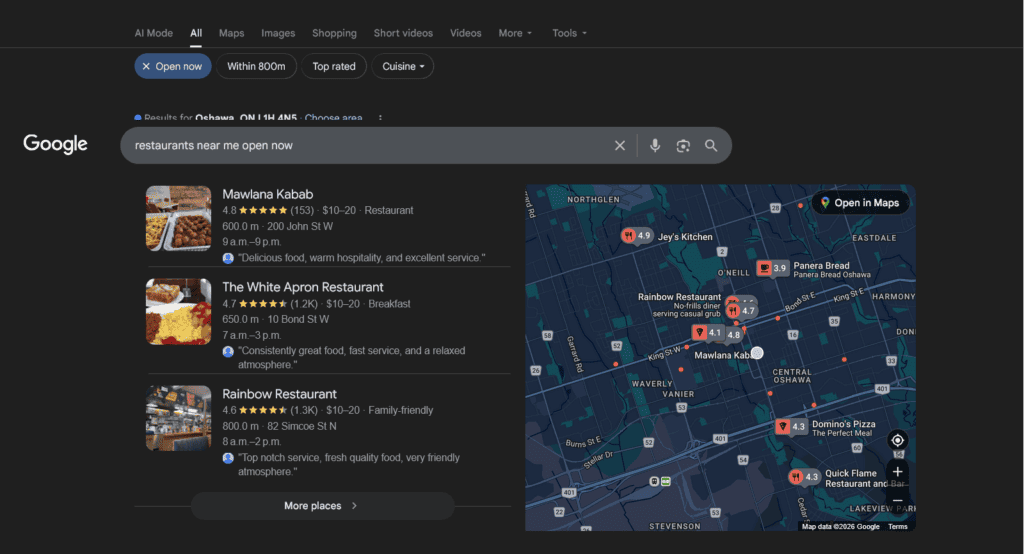
When someone searches for “web design Durham” or “pizza near me,” Google pushes the standard website links down and inserts a map widget at the top.
What it looks like: A map with red pins indicating business locations, followed by a list of three businesses.
What it displays: Business Name, Review Rating (Stars), Address/Location, Hours of Operation, and buttons for “Website” or “Directions.”
The Source: This data does not come primarily from your website; it comes from your Google Business Profile (GBP). This is a critical distinction for your clients—having a great website doesn’t guarantee a map ranking if their GBP is unverified or empty.
Sometimes, you will see a listing at the very top of the Map Pack with a small “Ad” label.
This is a Local Search Ad. It allows a business to “skip the line” and appear in the map results even if their organic SEO isn’t strong enough to get them into the top 3 yet.
How do I get my business listed on Map Results in Durham Region?
Make sure you have an active Google Business Listing for your business
By registering a Google Business account and verifying your listing you can add Posts, Holiday Hours and important photos to your business listing. The Posts can be used for feature sales, important information about your location and updated products. Similarly you can use photos to describe your location or services.
Having an active Google Business Listing lets Google know about your business and determines if you should be placed on search results.
Get Quality Reviews
Have you ever wanted to contact a business and looked at their reviews online? Reviews matter and a low score can kill a business. Customers can tell what looks like a fake review, or a thin review. Focus on getting quality reviews written by real clients. The reviews should include images, and be at least a paragraph in link.
Once you have an account and business listing setup from Step 1 – you can generate a review link. This is a link you can send to clients that will prompt them directly for a review from your business.
Here is how to grab that direct review link:
Method 1: On Desktop (Easiest)
- Log in to the Google account that manages the business.
- Go to https://www.google.com/search?q=Google.com and search for your business name.
- You will see a dashboard above the search results (a grid of icons).
- Click the icon labeled “Ask for reviews” (sometimes labeled “Get more reviews”).
- A pop-up will appear with a short link (usually starting with g.page/r/…). Copy this link.
Method 2: On Mobile (Google Maps App)
- Open the Google Maps app.
- Tap your Profile Picture in the top right corner.
- Select “Your Business Profiles” and tap your business.
- Scroll down the main profile options until you see a box that says “Get more reviews.”
- Tap it to copy the link or share it directly via text/email.
Keep your business listing updated and post frequently.
Now that you have a business listing and some reviews you should focus on posting frequently. Google business listings allow the ability to post updates directly to them and Google loves a business that provides content.
Consider having posts be part of your social media strategy and don’t forget to upload the occasional photo.
It takes time for Google to determine your final position (and that position will change). Be patient and keep at it!
Consider running a sponsored ad
Running a Local Search Ad is the fastest way to “skip the line” and secure the top spot on Google Maps, instantly placing your business above competitors—even those with established organic rankings. This strategy captures high-intent customers at the exact moment they are searching nearby, driving immediate calls and store visits rather than just website clicks. To get started, simply link your Google Business Profile to your Google Ads account, enable “Location Assets” in your campaign settings, and apply a bid increase for searchers located within a specific radius of your business.