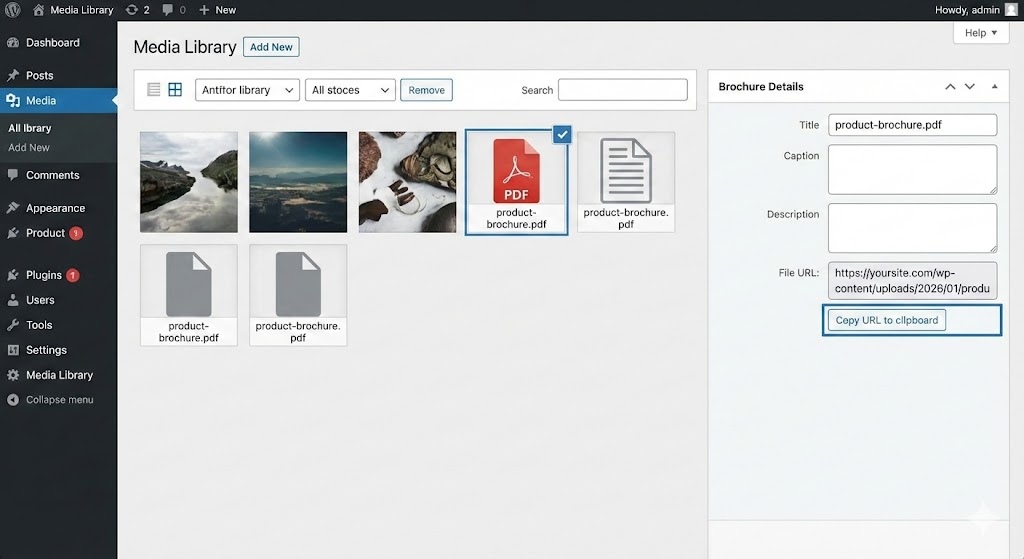
Step 1: Copy the PDF URL
Before you can create the link, you need the direct address of the file you just uploaded.
- Go to your WordPress Dashboard.
- Navigate to Media > Library.
- Click on the PDF file you just uploaded.
- In the details window that pops up, look for the “File URL” (usually on the right-hand side) and click the “Copy URL to clipboard” button (or manually highlight and copy the link).
Step 2: Add the Custom Link to Your Menu
Now that you have the link, you can add it to your navigation.
- Navigate to Appearance > Menus.
- On the left-hand side, look for the Custom Links accordian tab and click to expand it.
- URL Field: Paste the PDF link you copied in Step 1.
- Link Text Field: Type exactly what you want the menu button to say (e.g., “Download Brochure” or “View Menu”).
- Click the Add to Menu button.
- The item will appear at the bottom of your menu structure on the right. You can drag and drop it to rearrange its position.
- Click the blue Save Menu button.
Step 3: Make the PDF Open in a New Tab (Optional)
It is generally best practice to open PDF files in a new tab so users aren’t navigated away from your website.
- While still in Appearance > Menus, look at the very top right of your screen for a tab called Screen Options. Click it to expand.
- Under “Show advanced menu properties,” check the box for Link Target.
- Scroll back down to your new PDF menu item and click the small arrow to expand its settings.
- You will now see a checkbox that says “Open link in a new tab”. Check this box.
- Click Save Menu again.